
Securing Your Windows 11 Computer
Introduction (Windows 11)
Windows 11 includes strong security features out of the box, but many of the most important protections are either optional or depend on how your device is configured. This guide focuses on the highest-impact settings that reduce real-world risk for small businesses: preventing account takeover, blocking common malware techniques, limiting phishing and drive-by downloads, and improving recovery when something goes wrong.
Laptop security is part of a broader organizational approach. See What's in a Cybersecurity Plan? and Access Control & Password Best Practices for the surrounding organizational controls.
Prioritized Checklist
Use this like a punch list. Each item links to the step-by-step section below.
Priority 0 — Do these first (highest impact)
- Turn on automatic Windows Updates (and Microsoft Store app updates)
- Verify Microsoft Defender is healthy (real-time + cloud-delivered + tamper protection)
- Enable SmartScreen & reputation-based protection (phishing/malicious downloads)
- Turn on device encryption / BitLocker (protect data if the laptop is lost)
- Confirm Windows Firewall is on (all profiles)
- Harden sign-in: Windows Hello PIN/biometrics + account recovery + MFA
- Set a fast auto-lock and require sign-in immediately
- Set up backups you can actually restore (OneDrive + one extra)
Priority 1 — Do these this week
- Turn on ransomware protections (Controlled folder access) and test recovery
- Enable Core isolation / Memory integrity (when supported)
- Disable unused remote access (RDP, remote assistance) and reduce sharing exposure
- Audit privacy settings (diagnostics, advertising ID, permissions)
- Harden your browser (extensions, downloads, password manager, updates)
Priority 2 — High-impact extras (optional but recommended)
- Use a standard (non-admin) account for day-to-day work
- Consider Smart App Control / application control (where available)
1) Turn on automatic Windows Updates (and app updates)
Most compromises rely on known vulnerabilities that were never patched. Keeping Windows and common apps updated is one of the highest-ROI security actions you can take.
Go to: Settings → Windows Update and make sure updates are enabled and installing normally. Also enable app updates: Microsoft Store → Library → Get updates (and ensure automatic app updates are on).
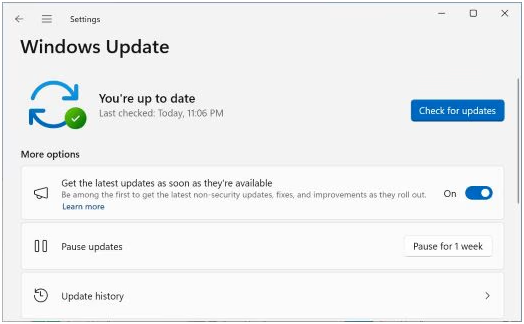
- Install updates promptly (especially security updates).
- Restart when required — pending reboots often leave machines exposed.
2) Verify Microsoft Defender is healthy (and hardened)
Microsoft Defender is strong when configured correctly. The goal is to ensure it's actively protecting you against modern threats (cloud detections, tamper resistance, and real-time scanning).
Go to: Windows Security → Virus & threat protection. Confirm:
- Real-time protection: On
- Cloud-delivered protection: On
- Automatic sample submission: On (recommended)
- Tamper Protection: On (prevents malware from disabling Defender)
3) Enable SmartScreen & reputation-based protection
SmartScreen blocks many common attacks: malicious downloads, known-bad sites, and "looks legit" phishing pages. It's a key protection for non-technical users and busy teams. Phishing is consistently among the most common phishing threats facing small businesses.
Go to: Windows Security → App & browser control, then enable Reputation-based protection options.
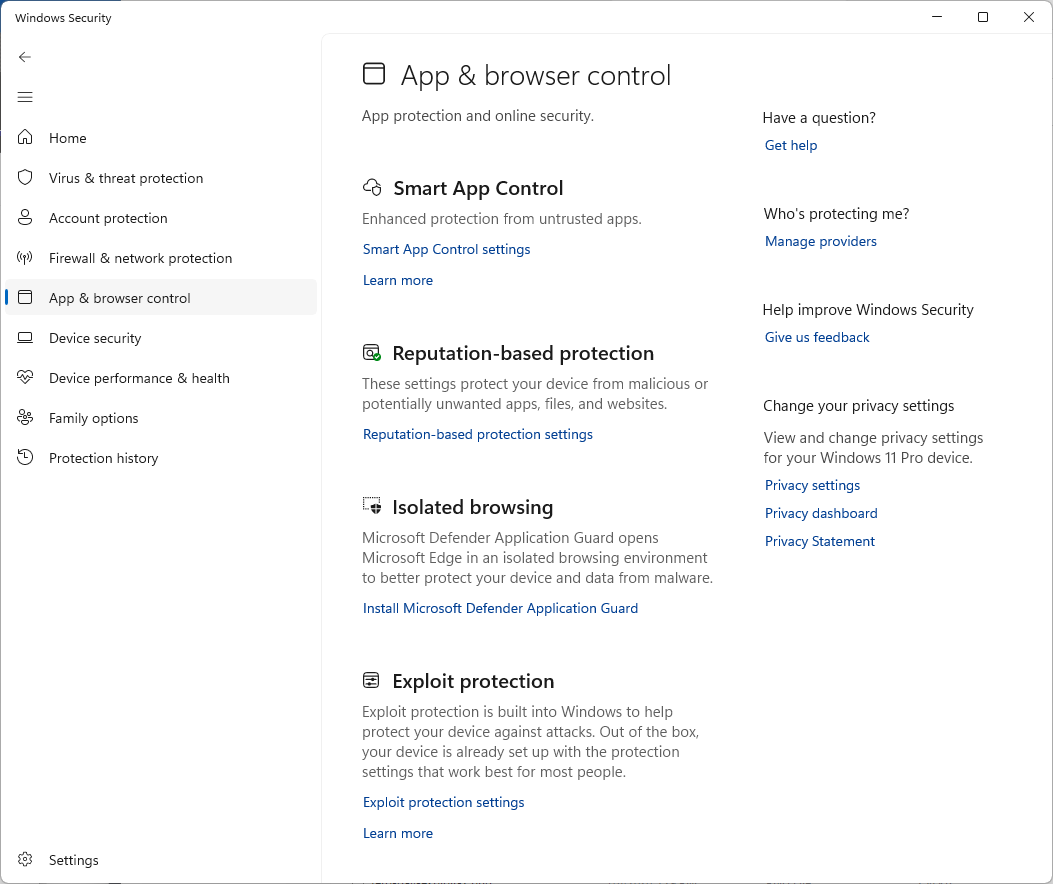
- Turn on Check apps and files
- Turn on Phishing protection (where available)
- Turn on Potentially unwanted app blocking
4) Turn on device encryption / BitLocker
Encryption protects your data if the device is lost or stolen. Without encryption, an attacker can often access your files by removing the drive or booting from external media.
Check: Settings → Privacy & security → Device encryption (some devices) or Control Panel → BitLocker Drive Encryption.
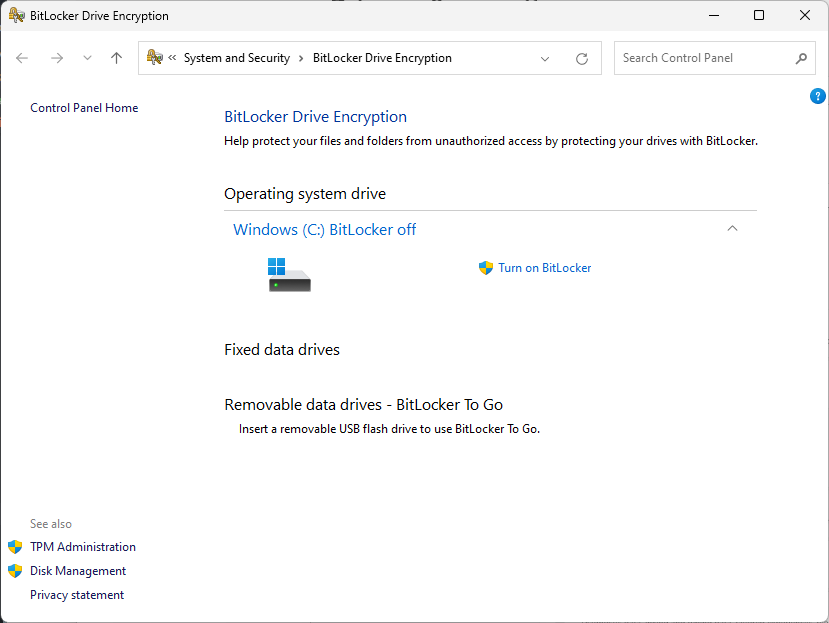
- If you use BitLocker, confirm you have a safe way to recover keys (company IT/MDM, Azure AD/Entra, or a secure recovery process).
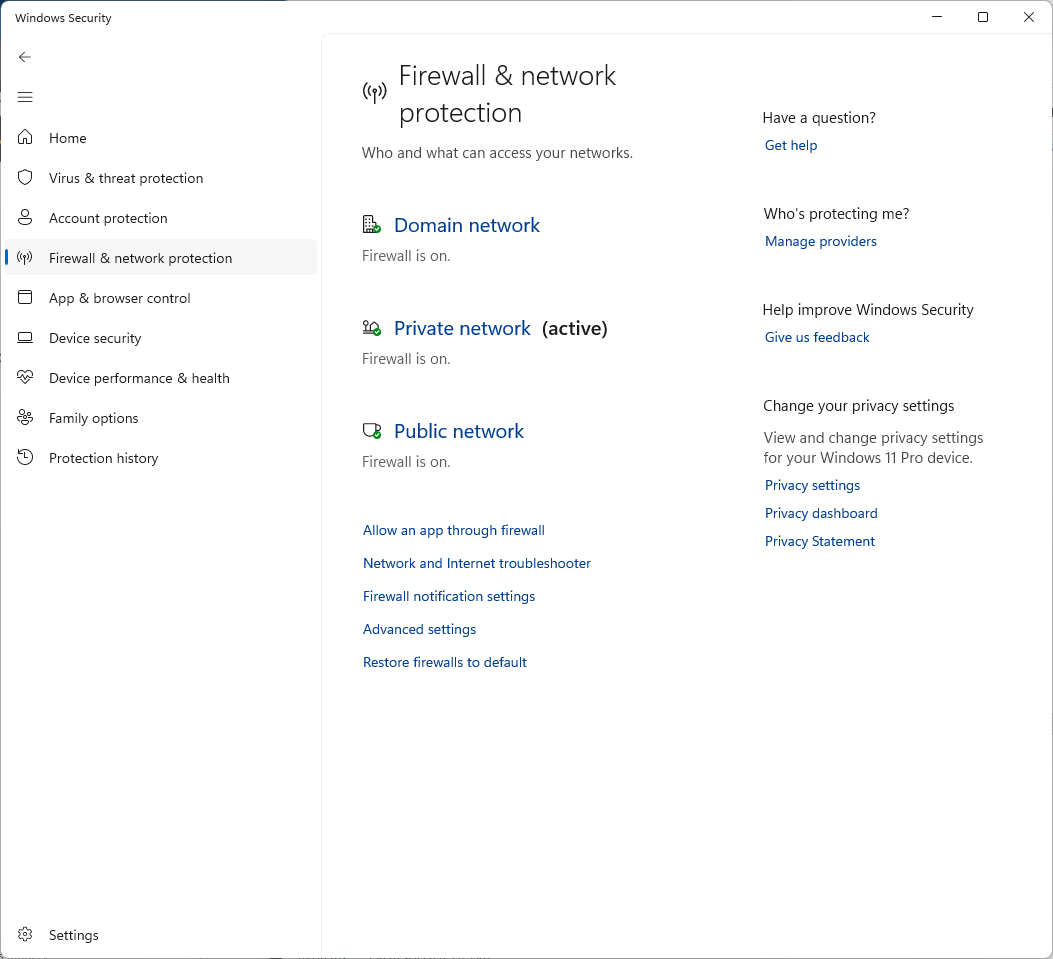
5) Confirm Windows Firewall is on (all profiles)
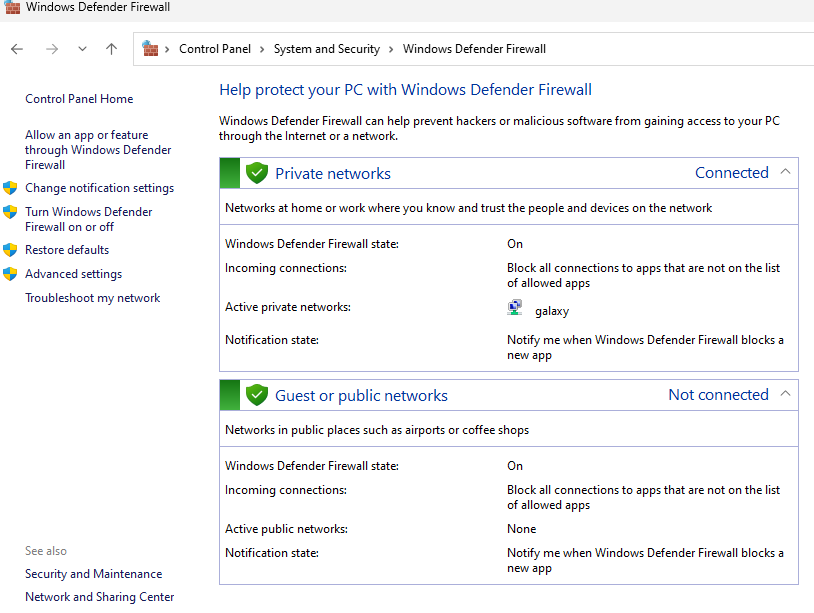
The firewall helps reduce exposure on untrusted networks (hotels, conferences, airports). You want it enabled for Domain, Private, and Public profiles.
Go to: Windows Security → Firewall & network protection and confirm each profile shows Firewall is on.
6) Harden sign-in (Windows Hello, MFA, recovery)
Account takeover is one of the most common real-world incident paths — see Account Takeover. Harden sign-in so stolen passwords don't become stolen devices or stolen data.
Go to: Settings → Accounts → Sign-in options.
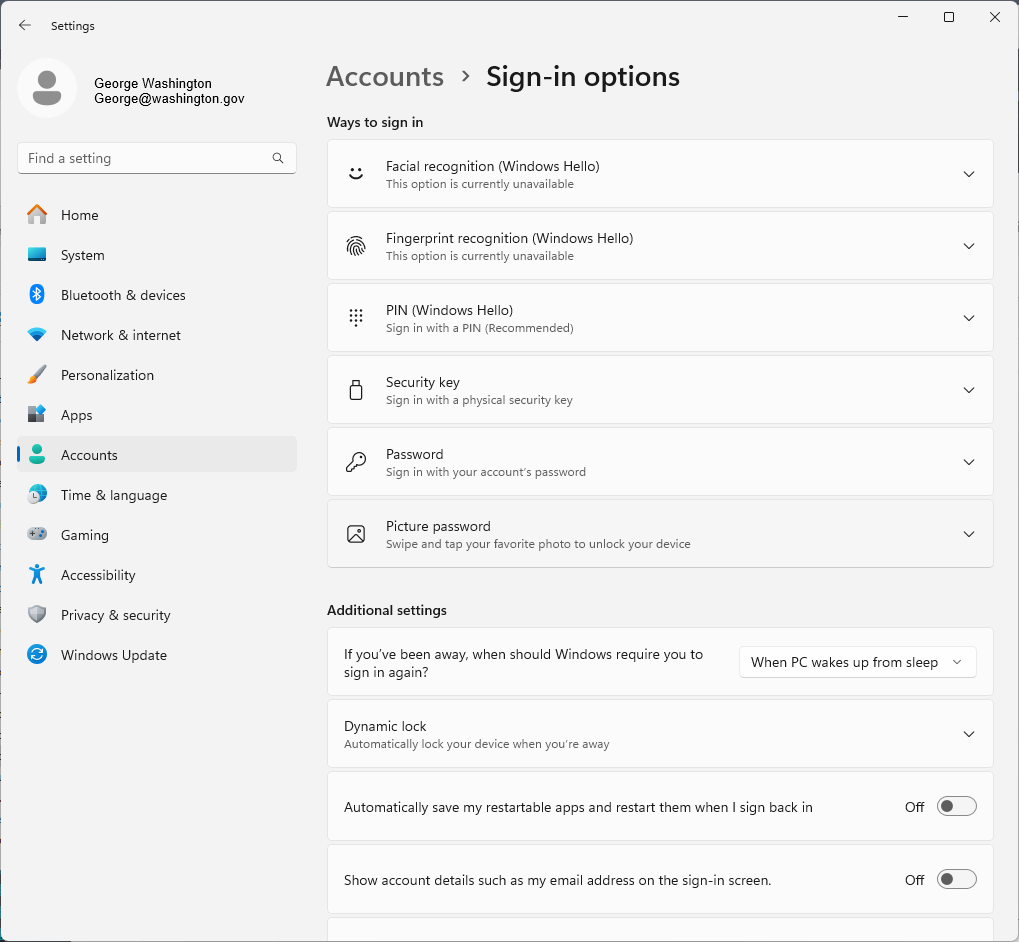
- Use Windows Hello PIN (and biometrics if available). It's device-bound and resists many credential replay attacks.
- If you use a Microsoft account (or Entra/Google SSO), enable MFA and verify recovery methods. See Access Control & Password Best Practices for organizational context.
- Avoid shared accounts; each person should have their own login.
7) Fast auto-lock + require sign-in immediately
A large share of "incidents" are simply someone walking up to an unlocked laptop. Lock quickly and require sign-in right away.
Go to: Settings → Accounts → Sign-in options and set If you've been away, when should Windows require you to sign in again? to Immediately.
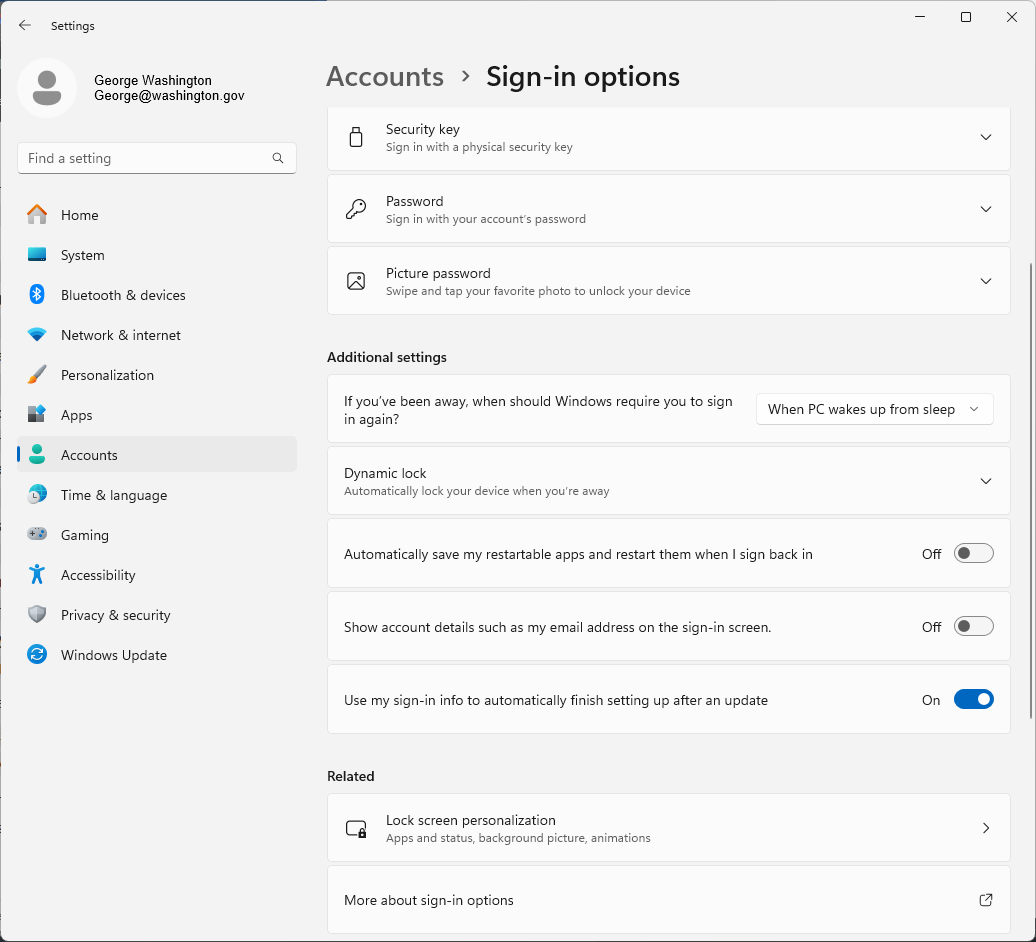
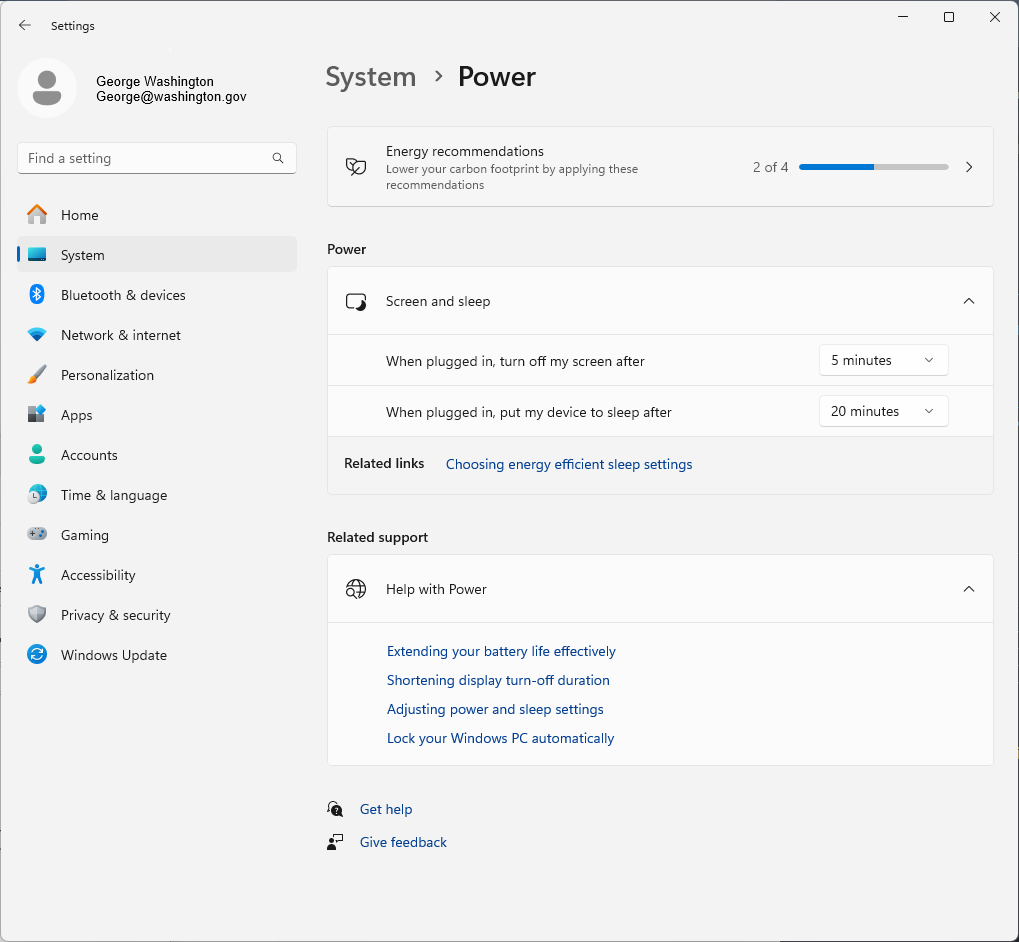
Also set screen timeout: Settings → System → Power & battery → Screen and sleep, and choose a short value for "On battery" and "When plugged in" based on your environment.
Habit tip: Win + L locks your PC instantly.
8) Backups you can actually restore (OneDrive + one extra)
Security is also recovery. Ransomware, accidental deletion, failed updates, and hardware failure all happen. Backups are what make the difference between a bad day and a catastrophe. For organizational context, see Business Continuity & Disaster Recovery Basics.
For most teams, the easiest win is protecting Desktop/Documents/Pictures with OneDrive: OneDrive → Settings → Sync and backup → Manage backup.
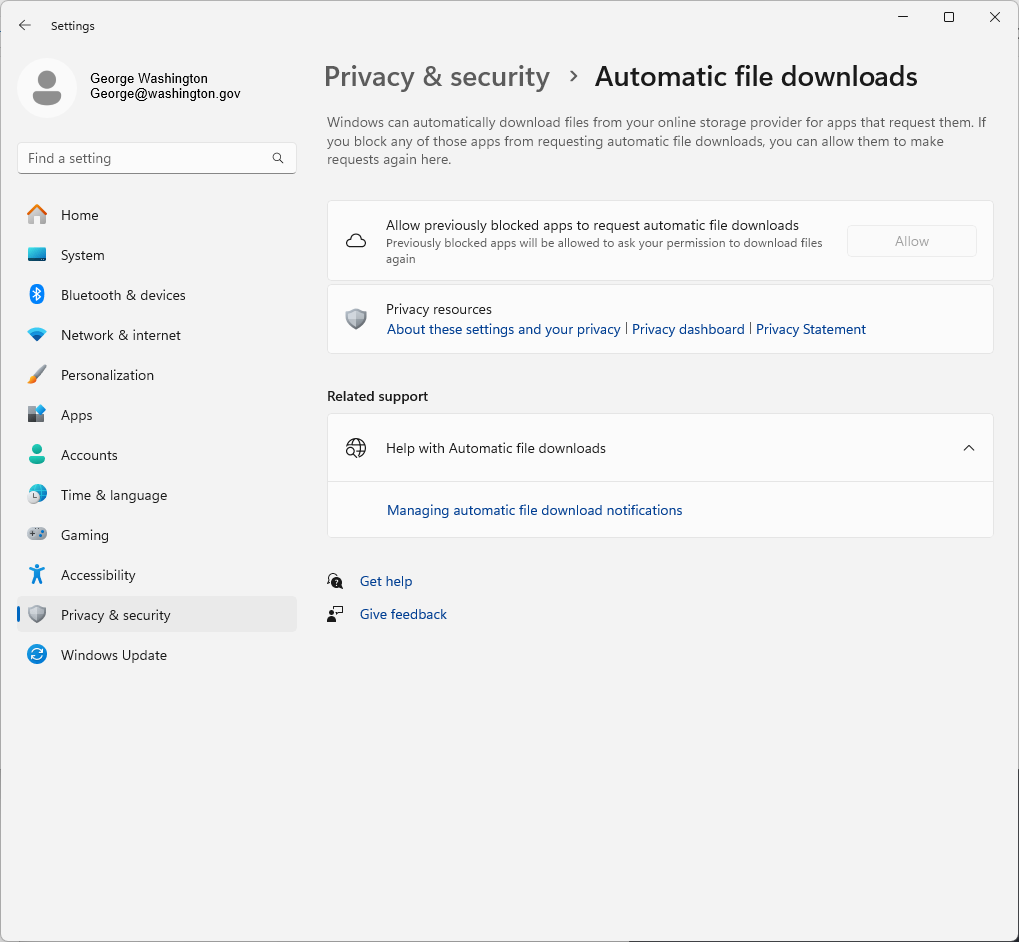
- Turn on backup for key folders (Desktop, Documents, Pictures).
- Add one extra backup layer for critical data (external drive rotation, a second cloud, or an organization-approved backup tool).
- Test a restore (even one file) so you know it works.
9) Turn on ransomware protections (Controlled folder access)
Windows includes ransomware protections that can block untrusted apps from changing protected folders. Ransomware can turn a bad day into an organizational crisis — this feature can stop much of the commodity damage.
Go to: Windows Security → Virus & threat protection → Ransomware protection, then enable Controlled folder access (if compatible with your apps).
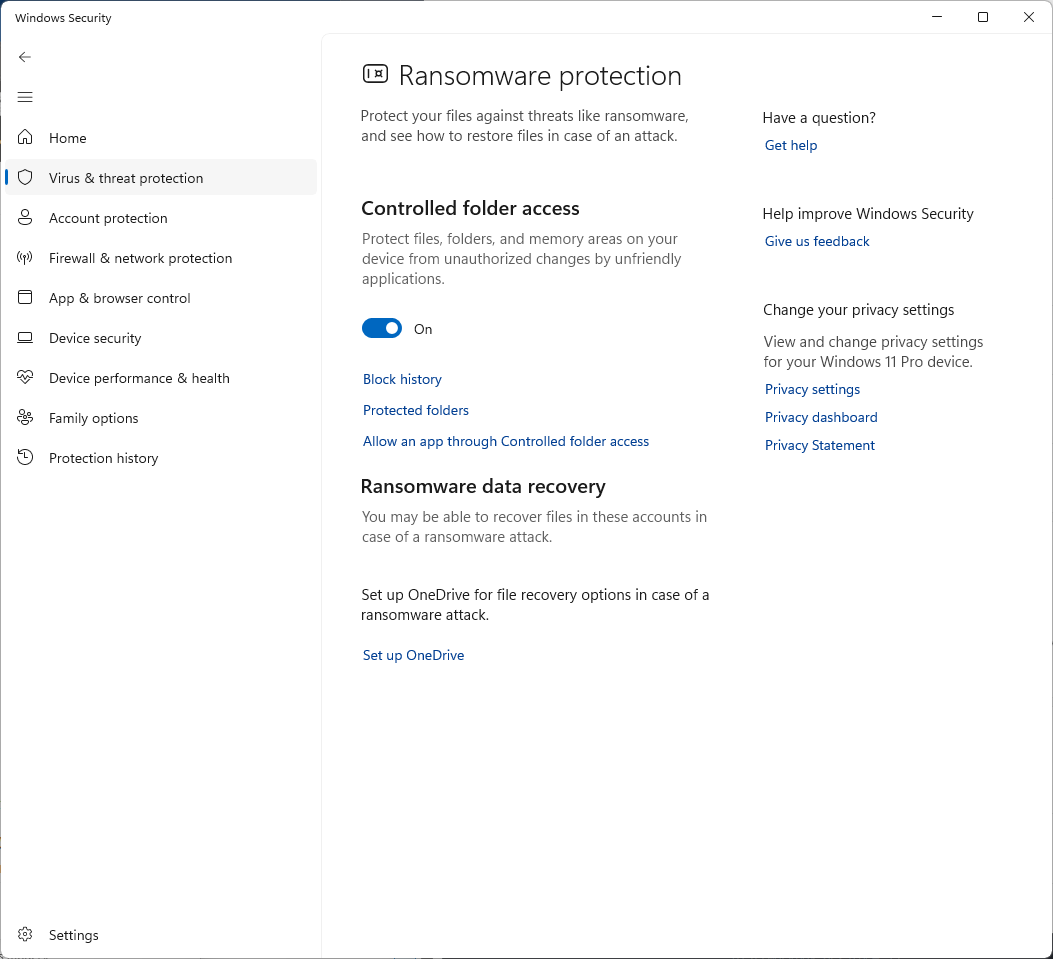
- If legitimate apps are blocked, add them as allowed apps (don't disable the feature entirely).
- Pair this with backups — ransomware protection is defense, backups are recovery.
10) Enable Core isolation / Memory integrity (when supported)
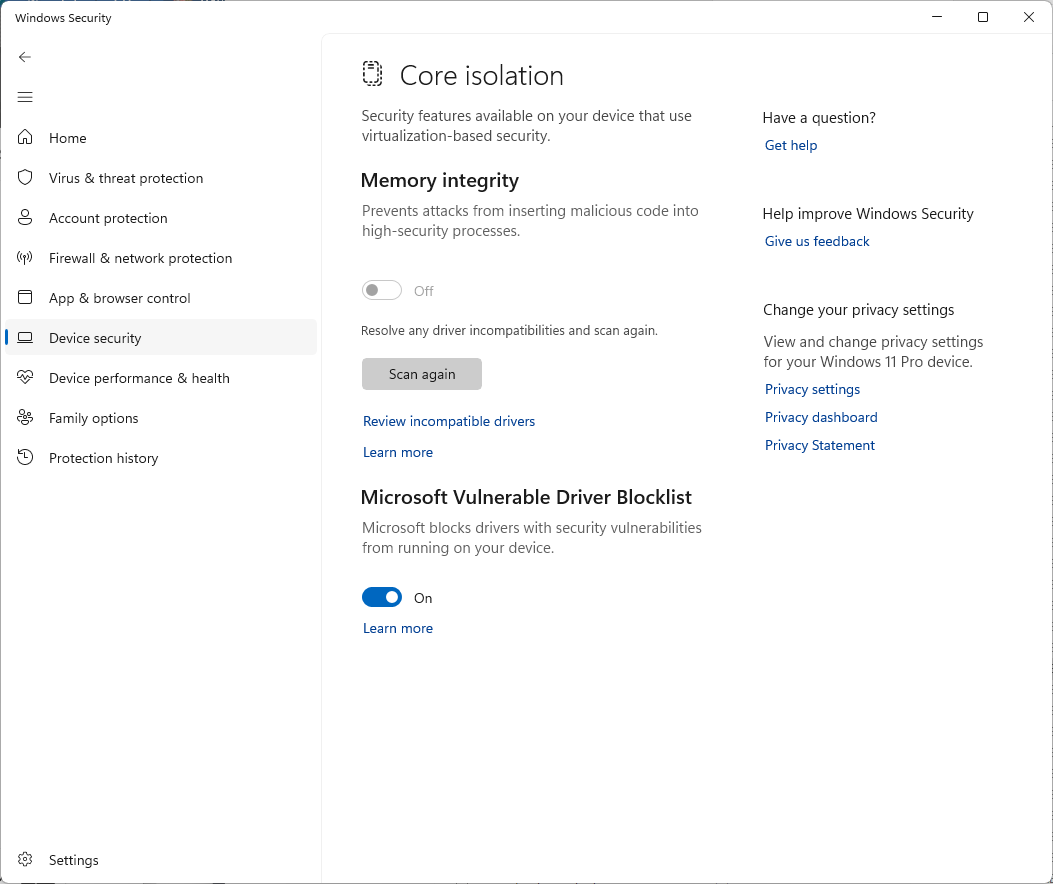
If your device supports it, Memory integrity (VBS/HVCI) can reduce whole classes of kernel-level attacks and driver abuse. Some older drivers may conflict, so treat this as "enable and confirm everything works."
Go to: Windows Security → Device security → Core isolation, then enable Memory integrity if available.
11) Disable unused remote access and reduce sharing exposure
Remote access is useful when you need it, but dangerous when you don't. Enabled RDP or remote assistance can become a remote access abuse vector and a direct intrusion path.
Review: Settings → System → Remote Desktop and keep it Off unless you explicitly use it.
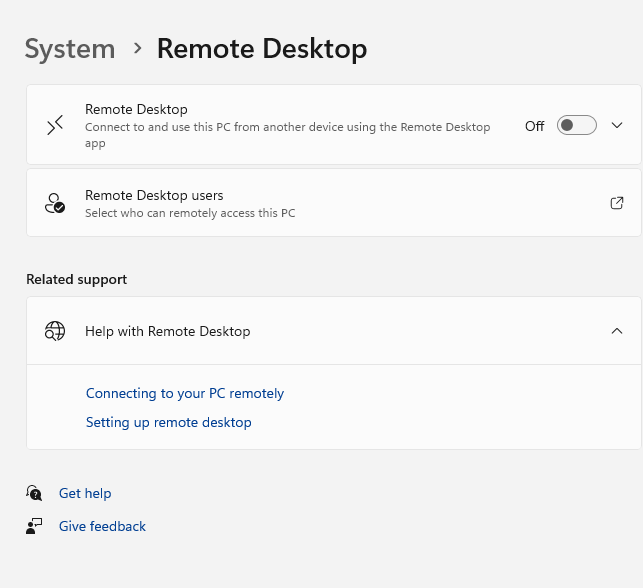
- If Remote Desktop must be on, restrict it (VPN, allowed users only, MFA via your identity provider, and strong monitoring).
- Review file/printer sharing settings on laptops — disable what you don't use.
12) Audit privacy settings (permissions + diagnostics)
Privacy settings limit what information is available to apps — and to attackers during reconnaissance. Review what apps have access to sensitive capabilities.
Review: Settings → Privacy & security, including:
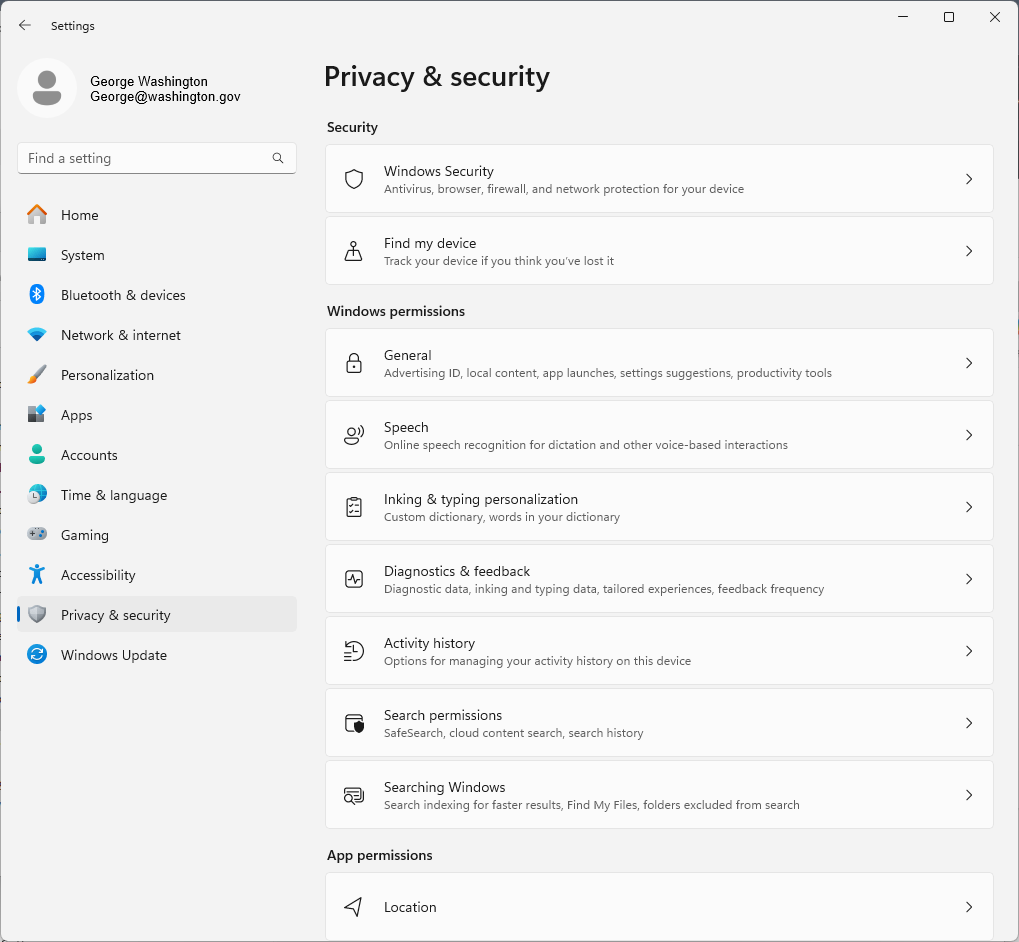
- App permissions (Location, Camera, Microphone)
- Diagnostics & feedback settings (choose org-appropriate options)
- Advertising ID and suggested content settings
13) Harden your browser (extensions, downloads, phishing)
Browsers are the #1 path for phishing and drive-by attacks. Keep your browser updated, reduce extensions, and use built-in protections.
For Microsoft Edge: Settings → Privacy, search, and services and confirm protections are enabled (tracking prevention, Defender SmartScreen).
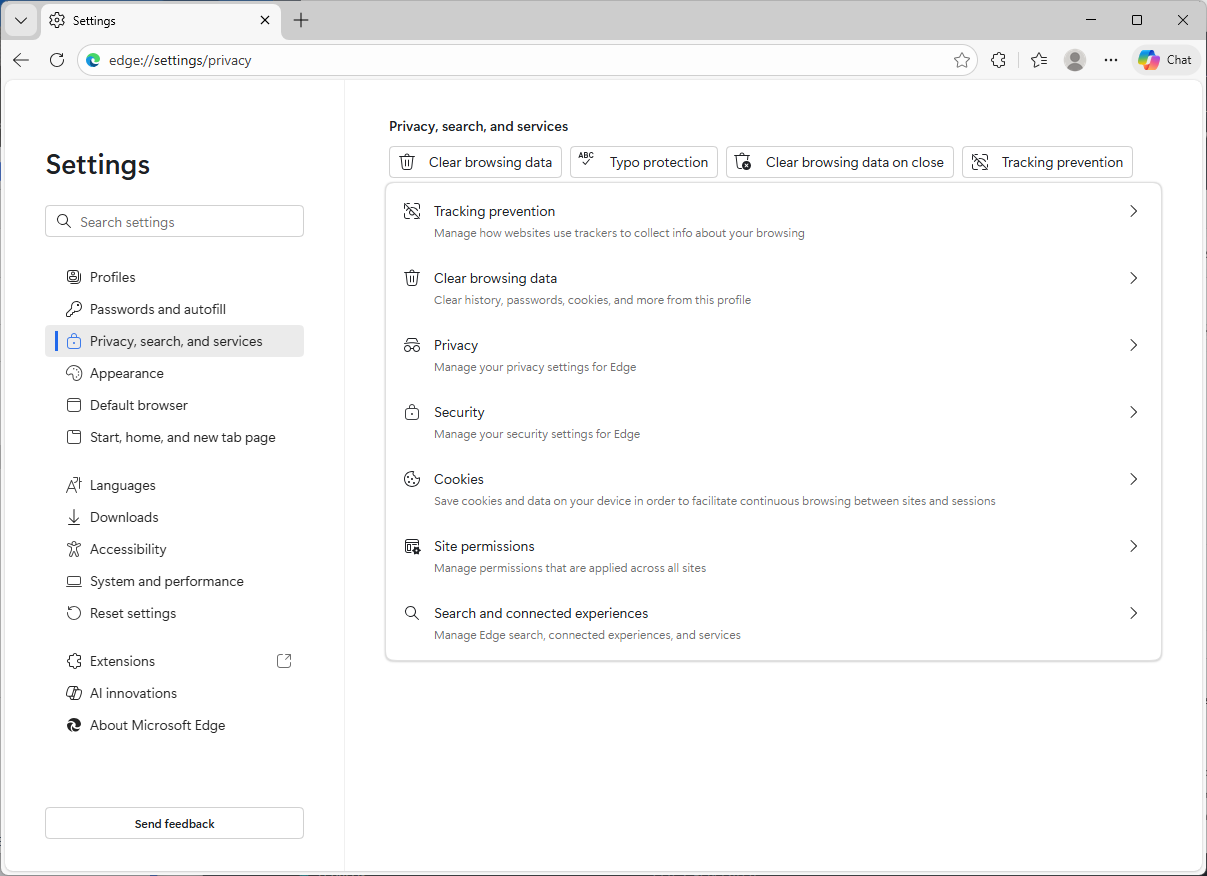
- Remove extensions you don't absolutely need.
- Be cautious with downloads — avoid "free" utilities and cracked software.
- Use a password manager and avoid reusing passwords. See Access Control & Password Best Practices.
14) Optional: Use a standard (non-admin) account for daily work
Running daily as an admin makes it easier for malware to become admin. A standard account for daily work plus elevation only when needed is a very high-impact protection that costs nothing.
15) Optional: Smart App Control / application control
Where available, application control features can block untrusted or low-reputation apps from running. This can reduce the risk of malware arriving via email attachments and downloads.
Look under: Windows Security → App & browser control for application control or Smart App Control options (availability varies by edition and device state).
Bottom line: If you complete Priority 0 (updates + Defender hardening + SmartScreen + encryption + firewall + secure sign-in + fast lock + backups), you eliminate a large share of real-world Windows 11 Computer risk.
Back to prioritized checklist ↑
How the CSFSafe Cybersecurity Playbook Helps
The CSFSafe Cybersecurity Playbook includes plain-English device security policies, acceptable use standards, and practical checklists designed for small businesses, nonprofits, and local governments — so your team knows what's expected and your organization is covered.
- Ready-to-use policy language covering device configuration and acceptable use.
- Implementation checklists tied to the NIST Cybersecurity Framework.
- Staff training guidance to build good security habits organization-wide.
Build Your Cybersecurity Playbook
A complete, guided desktop app — Incident Response, Business Continuity, Disaster Recovery, and Security policies, all in one place.
Not sure where to start? The free Cybersecurity Checkup asks a few quick questions and gives you a prioritized list of improvements.
Last updated: February 3, 2026